Unwanted settings reapplied after VM restoration
Issue 
Unwanted settings re applied after VM restoration.
Symptoms 
Unable to login to built-in administrator account. LGPO and registry changes were automatically reapplied to VM upon start up.
Events and Details 
Applied LGPO and registry changes to a VM for server hardening. After hardening, unable to login to built-in administrator account. As part of the roll back plan, restored the VM's os disk using the snapshot taken prior to server hardening activity. Swapped the unhardened os disk to the hardened os disk, then turn on VM. Upon boot up, still unable to login to the VM. Built-in administrator account password has been reset to be able to login to the VM. Upon initial check inside the machine, it was confirmed that the hardening script has been applied after swapping the os disks and upon VM boot up.
Hardening was applied by pushing the hardening script inside the VM thru automation runbook. Runbook executes Invoke-AzVMRuncommand to execute hardening script to the VM without logging in. It is not part of the script to retry hardening upon boot up.
Testing 
Issue has been replicated into the Dev environment were further testing and work around was developed.
The pivotal key to fomulating a work around is understanding and observing the behavior of using the Invoke-AzVMRuncommand.
Sample Command:
Invoke-AzVMRuncommand -resourcegroupname "RG" -VMName "vm1" -CommandID "Runpowershellscript" -ScriptPath "C:\temp\hardening.ps1"
Note: scriptpath parameter is the path where your script is located in your local machine.
After command execution, your script will be created and executed inside the machine. you can check the script inside the path below.
C:\Packages\Plugins\Microsoft.CPlat.Core.RunCommandWindows\1.1.11\Downloads
Image:
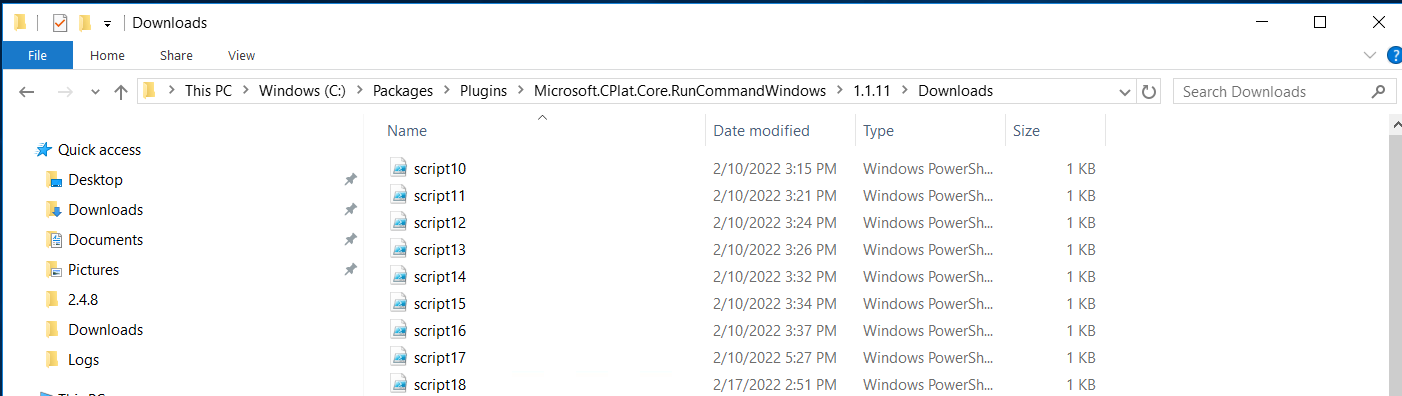
the filename will be script{no.}, where number is the sequence number. it denotes the number of script that was remotely executed on the vm since creation.
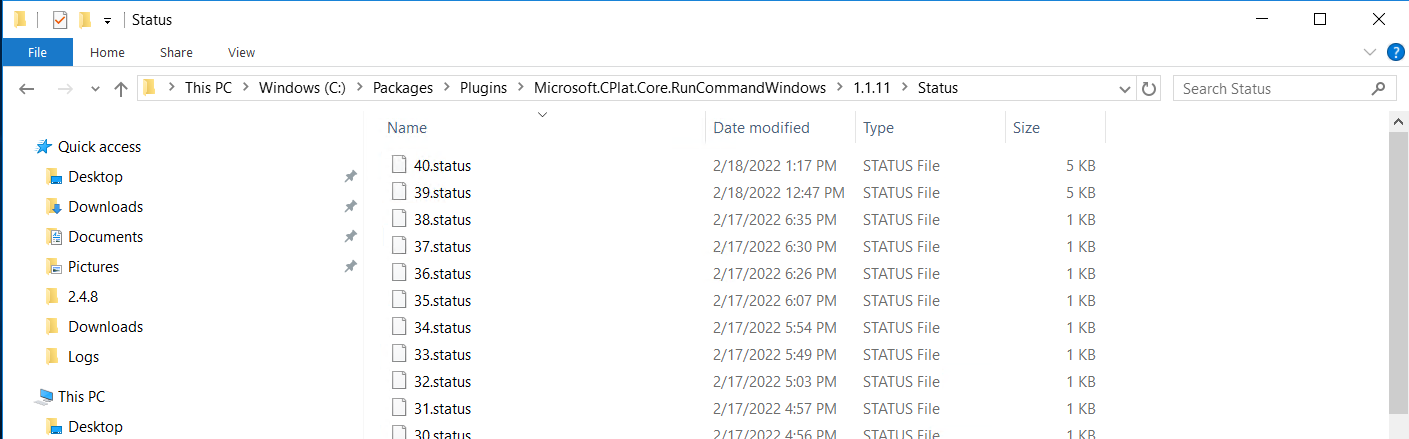
It is observed that if you push a script using Invoke-AzVMRuncommand to a vm, then you swap the os disk with any disk that has not contained the script yet, upon start up, VM Agent handler will check the latest script that was ran on the VM from the azure back end then create it inside the VM. Handler will then check the status folder for the latest status of the script, wether the status file exist or not based on the sequence number. If no status exists, it will execute the newly copied script from azure backend. It will then create a status file with result based on the sequence number.
Every boot up, the VM agent handler repeats the process of copying the script from azure backend and checking the status folder, but it will not proceed with executing the script as it detects the status file, unless there is a new script exectued to the VM.
Status file path: C:\Packages\Plugins\Microsoft.CPlat.Core.RunCommandWindows\1.1.11\Status
 )
)
The RunCommand logs is also very helpful for investigation. Can be determined in the logs if the script has been executed properly.
Path: C:\WindowsAzure\Logs\Plugins\Microsoft.CPlat.Core.RunCommandWindows\1.1.11

Solution 
-
Override the last script you ran on the VM with another script that does not change any settings.
If you have ran scripts to your VM using the invoke-azvmruncommand, either thru portal or powershell, that makes changes to the settings and then a situation calls for you to restore from a previous state using the a snapshot taken prior the activity, just issue a simple, non-intrusive script prior to swapping os disks. It can be any simple cmdlet that does not change anything on the vm , e.g. Get-childitem,Get-services etc.. This will override the last script that was ran on the VM and after swapping os disks, this will be executed on the new disk. Since the latest script you ran does not change anything on the VM, it will boot up to state prior to your changes, technically undoing your changes and it will not reapply the changes you have made.
-
Purposely break your script to fail.
Another way is by purposely breaking your script so that it will fail on the next run. Thus, it will not re apply the changes you made using the script.
Note: Wether it succeeds or fail on the next run, handler will create a status file, which will prevent the script from getting executed every boot up.
Version History
| Version | Remarks | Approved By | Date |
|---|---|---|---|
| 1.0 | Initial Draft | Benjamin Wong | 02-23-2022 |
Document Control No.: QI-INFRA-SOLN-00001