9. Upgrade Terraform
Always check the changelog and make sure you understand any breaking changes that appear in the new version you want to use.
https://github.com/hashicorp/terraform/blob/v0.12.28/CHANGELOG.md
https://releases.hashicorp.com/terraform/
Upgrading azurerm provider
Step to upgrade Terraform Linux/CentOS, Mac & Windows
To upgrade Terraform, find the appropriate package for your system and download it as a zip archive.
Step 1: Install the pre-requisite or follow the guide on terraform setup
Step 2: Install Terraform on Ubuntu/CentOS 8 and download it via wget download binary archive file.
wget <dl url link>
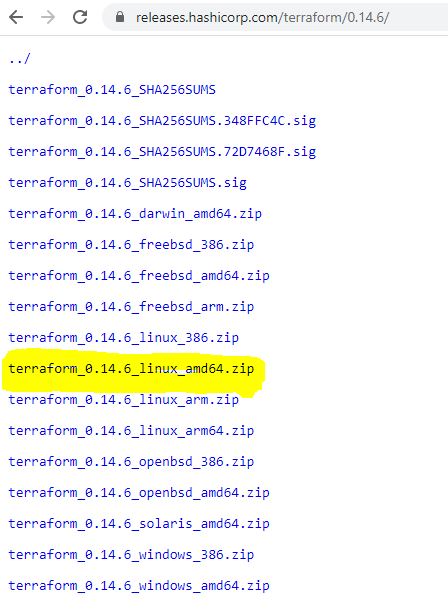
Example: Downloading terraform version for linux version 0.14.6
wget hhttps://releases.hashicorp.com/terraform/0.14.6/terraform_0.14.6_linux_amd64.zip
Setp 3: Extract the downloaded archive
unzip terraform_${TER_VER}_linux_amd64.zip
or
unzip terraform_0.14.6_linux_amd64.zip
Step 4: Then move the binary file to directory in your PATH.
sudo mv terraform ~/bin
sudo mv terraform /usr/local/bin/
Step 5: Confirm Terraform upgrade on Linux/CentO/ MacOS Check the version of Terraform to validate our installation or upgrade:
terraform -v
Output: Terraform v0.14.6
For Windows: This is using Git Bash on Windows
Ex: my current version 0.13.4
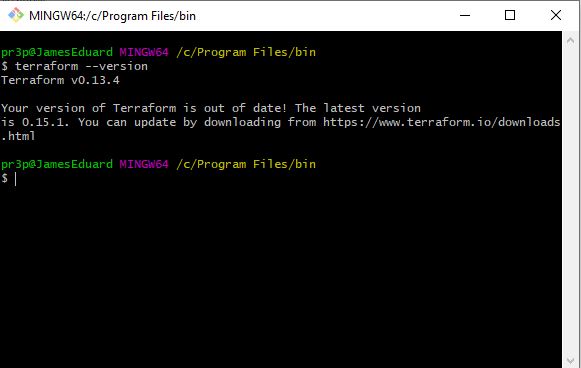
1. Download the latest version and unzip it https://releases.hashicorp.com/terraform/
2. Navigate to that folder through your bash CLI or unzip/copy manually the terraform.exe to your terraform path
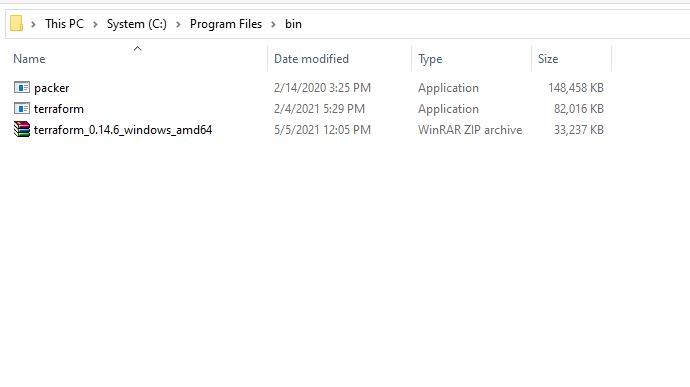
3. Copy the path of the terraform Manual: For windows if you installed by default it has two directories for terraform & just copy the extracted terraform.exe to the following path:
C:\Program Files\bin C:\Program Files (x86)\bin_
For Git Bash execute the following command:
cp terraform.exe /c/Program\ Files\ \(x86\)/bin/
cp terraform.exe /c/Program\ Files/bin/
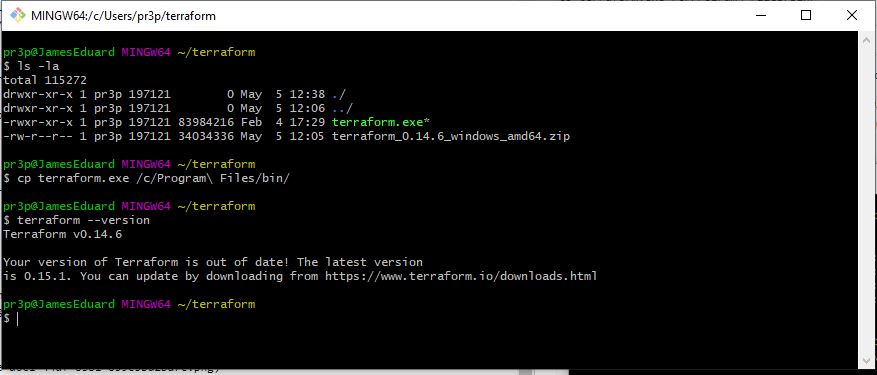
4. You can check the version with the following command on gitbash, cmd or powershell.
terraform --version