4. Git Setup
Getting started with Git 
The steps below do not yet cover standard executable install of Git for windows. This is because the recommended platform for using Git in our environment is WSL, and Git comes by default with WSL.
Run git --version to confirm if Git is installed. If you see a version number, all is good. If not, follow the steps below to install Git.
=================================
Installing Git 
As always, with linux, we should start out by running general OS and package updates:
Update Os and Packages
sudo apt-get update
After you have run the general updates, install Git
Install Git
apt-get install git-core
Verify installation
git --version
=================================
Setup the Git user 
git config --global user.name "User Name" git config --global user.email "[email protected]"
Verify the git config
cat ~/.gitconfig
=================================
Setup SSH for Git 
-
First check if you already have SSH keys. Run
cd ~/.ssh, followed byls -aland look for two files called id_rsa and id_rsa.pub. -
If you don't already have SSH keys, run
ssh-keygen -t rsa -C "[email protected]"to create an SSH private and public key. If you do have them, skip to step 5. -
You will be asked to key in a passphrase to secure your private key. It's strongly recommended to set one to ensure the keys can't be used if an attacker ever gets access to your keys. READMORE
-
Add the SSH key to the SSH agent and key in your passphrase by running:
eval $(ssh-agent -s) # Starts the SSH agent
ssh-add ~/.ssh/id2_rsa # Loads a private key from the specified file and saves passphrase
eval $(ssh-agent -s)
ssh-add -K ~/.ssh/id_rsa
-
Copy the public key by running
cat ~/.ssh/id_rsa.pubor open id_rsa.pub with a standard texteditor, and paste it in your DevOps account under SSH Public Keys -
If you have multiple private keys for different services, you specify which service should use which key. To do that, modify the SSH config file accordingly.
Tip: Here's an ssh config sample you can use.
-
Verify that the md5 finger print is the same as the one you see on DevOps:
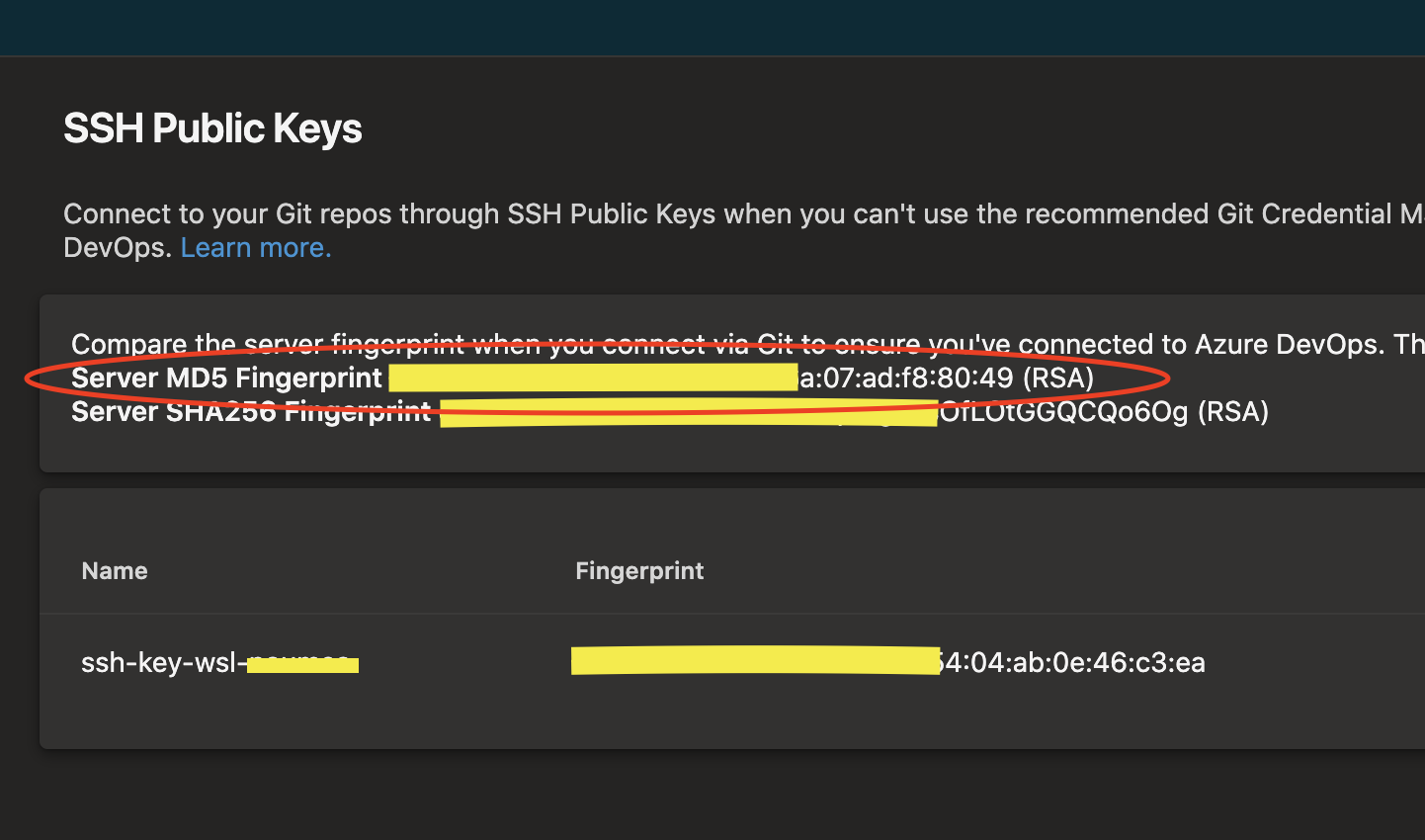
ssh-keygen -l -E md5 -f ~/.ssh/id_rsa.pub
- Test the connection to DevOps by cloning a repository using the SSH URL from DevOps :
git clone [email protected]:v3/projectoptimus/ITOPS/Azuretraining
If you are constantly asked to key in your SSH private key password, you can run the command below to add it to your shell session. This will live in the current session and if you close VSCode or your terminal and re open it, you will need to run it again.
ssh -T [email protected]